
Using Atomic
This page collects day-to-day usage details that do not fit on the quickstart page.On this page and its reference
This page covers interactive use: the interactive loop, slash commands, the message queue, sessions, context files, and the design principles behind them. Every command, flag, argument, and environment variable now lives in the CLI reference.Interactive Mode
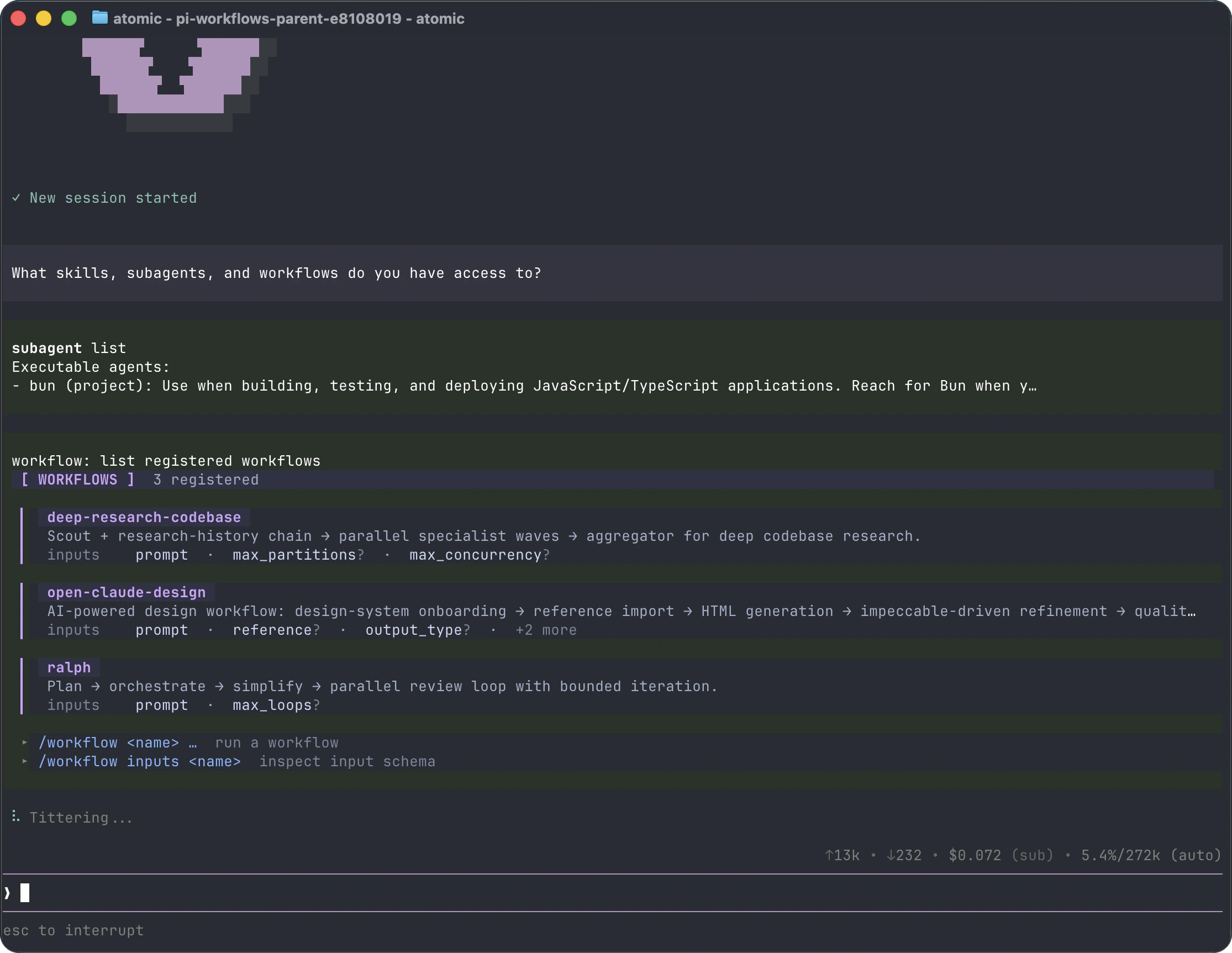
- Startup header - shortcuts plus named lists of loaded context files, prompt templates, skills, and extensions; use the expand-tools shortcut (Ctrl+O by default) to switch those lists to source paths
- Messages - user messages, assistant responses, tool calls, tool results, notifications, errors, and extension UI
- Editor - where you type; border color indicates the current thinking level
- Footer - working directory, session name, token/cache usage, cost, context usage, and current model
/settings or by custom extension UI.
Startup and Working Identity
The startup animation shows Atomic’s identity. Press any key, including Ctrl+C, to finish it immediately and continue normal input. SettingquietStartup to true suppresses it, while "header" keeps it; non-TTY sessions and ATOMIC_REDUCED_MOTION=1 show the settled identity without animation. NO_COLOR removes foreground colors while retaining weight emphasis.
Startup lists loaded context files, skills, prompts, and extensions by name. Custom themes are not listed; choose them in /settings. Duplicate local extension names include path information. Expand the startup disclosure to see source paths.
While the agent works, ∀ pulses beside a working message. Retry, fallback, compaction, cancellation, and error messages take precedence; approval prompts hide ordinary activity. Set ATOMIC_REDUCED_MOTION=1 for a static indicator or NO_COLOR for activity without foreground colors. Extensions can customize the indicator.
Editor Features
See Keybindings for all shortcuts and customization.
On native Windows,
! and !! execute PowerShell (preferring PowerShell 7 pwsh.exe, then Windows PowerShell powershell.exe; see Windows for the locations checked). Linux, macOS, and WSL use Bash. Extension-provided execution operations still take precedence. shellCommandPrefix is still prepended, so use syntax matching the selected shell; shellPath configures Bash, not Windows interactive PowerShell. Escape or Ctrl+C cancels a running command. !! output remains excluded from model context.
On Windows, ALT+Z lends the terminal to an interactive PowerShell subshell. Type exit to return to the same Atomic session; owned background tasks keep running. CTRL+Z remains editor undo. On POSIX systems, CTRL+Z suspends Atomic and fg resumes it.
Startup typing
On normal interactive TTY startup, Atomic captures raw keyboard input before deferred resources finish loading and until the TUI input handler mounts. It replays text typed before the prompt box is ready into the editor.- Enter-submitted ordinary prompts wait for the prompt loop to become ready.
- Command-like submissions such as
/settingsor!pwdreplay as standalone editor submissions through normal command routing. - Later submissions wait behind a captured command and replay in input order. Ordinary prompts cannot overtake commands, and commands are not merged with following prompts.
Slash Commands
Type/ in the editor to open command completion. Extensions can register custom commands, skills are available as /skill:name, and prompt templates expand via /templatename.
Message Queue
You can submit messages while the agent is still working:- Enter queues a steering message, delivered after the current assistant turn finishes executing its tool calls.
- ALT+Enter queues a follow-up message, delivered after the agent finishes all work.
- Escape aborts active/queued work and restores queued steering/follow-up messages to the editor. The session remains paused until you submit the next ordinary chat message; that submission releases any held queue before starting the new turn. A later Escape while the queue is paused restores any newly queued steering/follow-up text without releasing the pause.
- Ctrl+C aborts active/queued work and pauses queued messages in place. They remain queued, in their original per-queue order, until you submit the next ordinary chat message; that submission resumes the chat and makes each queued item eligible once. After the abort settles, a later idle Ctrl+C clears the editor without releasing the hold, and a second quick idle press exits.
- ALT+Up explicitly retrieves queued messages back to the editor without aborting active work or resuming a paused session. Even when retrieval empties the queue, the pause remains active until the next ordinary submission.
steeringMode and followUpMode.
Sessions
Sessions are saved automatically to~/.atomic/agent/sessions/, organized by working directory.
--session-id does not match an exact session in the current project, Atomic warns that no session was found and then creates the requested new session. Reusing an existing exact ID opens it without that warning.
--session and --fork resolve exact custom IDs first within each search scope. UUID-backed sessions also support a unique, exactly 8-character hexadecimal prefix; ambiguous prefixes list their matching full UUIDs, while other UUID truncations are rejected after checking for exact custom IDs, including global IDs such as cafe. Current-project matches retain priority over the global session store. Repeated catalog entries for the same UUID count as one match.
Useful session commands:
/sessionshows the current session file and ID./treenavigates the in-file session tree and can summarize abandoned branches./forkcreates a new session from an earlier user message./cloneduplicates the current active branch into a new session file./compactuses verbatim line compaction: the model selects one-based numbered ranges to delete, Atomic validates them, and retained text is reconstructed mechanically with(filtered N lines)markers. Exactly the configured number of newest context-visible messages remains ordinary; the default is two and zero preserves none.
Context Files
Atomic loadsAGENTS.override.md, AGENTS.md, or CLAUDE.md at startup from:
~/.atomic/agent/for global instructions (legacy~/.pi/agent/also works)- parent directories, walking up from the current working directory
- the current directory
AGENTS.override.md, Atomic uses it instead of that directory’s AGENTS.md or CLAUDE.md. Context files from other directories still layer normally.
Use context files for project conventions, commands, safety rules, and preferences. Disable loading with --no-context-files or -nc.
System Prompt Files
Replace the default system prompt with:.atomic/SYSTEM.mdfor a project~/.atomic/agent/SYSTEM.mdglobally
APPEND_SYSTEM.md in either location.
The default prompt asks the agent to write self-describing code and not add code comments unless you ask for them or the task calls for them. To get comments, request them in your prompt (for example “add JSDoc to the exported functions”), or make it a standing rule in a context file or APPEND_SYSTEM.md (for example “Document every exported function with a JSDoc block”). The default guideline explicitly defers to those instructions, so no other configuration is needed.
When a shell tool is available, the default prompt also asks the agent to record how each task ran in the commits, PRs, issues, and comments it writes, so later sessions can learn from your history:
Assistant-workflow: inline. Each Assistant-verification line names one check that ran or was attempted, such as unit or E2E tests, agent-browser, Cua Driver, Herdr terminal automation, or the qlty CLI, with its outcome (passed, failed, or unavailable). Each preference carries a Co-authored-by line naming the user who expressed it. Before choosing between a workflow and inline work, deciding how to verify a change, or estimating how long a task will take, the agent looks up comparable records with your version control system and its hosting CLI (for example git log and gh on GitHub) and uses them as a guide alongside your request. A lack of workflow history, or a history of mostly inline tasks, does not make the agent default to inline work: it still judges from the task itself whether a workflow would help unless you have stated or recorded a preference. For verification, it starts from the checks that proved similar changes and skips setups previously recorded as unavailable unless something has changed, while still running the project’s required checks. It applies your own recorded preferences first and falls back to other contributors’ preferences as repository conventions only when yours don’t cover the situation, so you can always override a convention by stating your preference. To turn off any of these records, such as only preferences or all of them, say so in your request, a context file, or APPEND_SYSTEM.md.
Exporting and Sharing Sessions
Use/export [file] to write a session to HTML. In the exported page, press T to toggle thinking, O to toggle tool output, and H to show custom messages that are hidden in the terminal. Hidden messages stay hidden until you toggle them, and selecting one in the sidebar reveals them.
Use /share to upload a private GitHub gist with a shareable HTML link.
Treat exported and shared sessions as sensitive: transcripts can contain source code, file paths, credentials, and other private data from your session. Review a session before sharing it, and only upload transcripts you are comfortable making accessible to anyone with the link.